
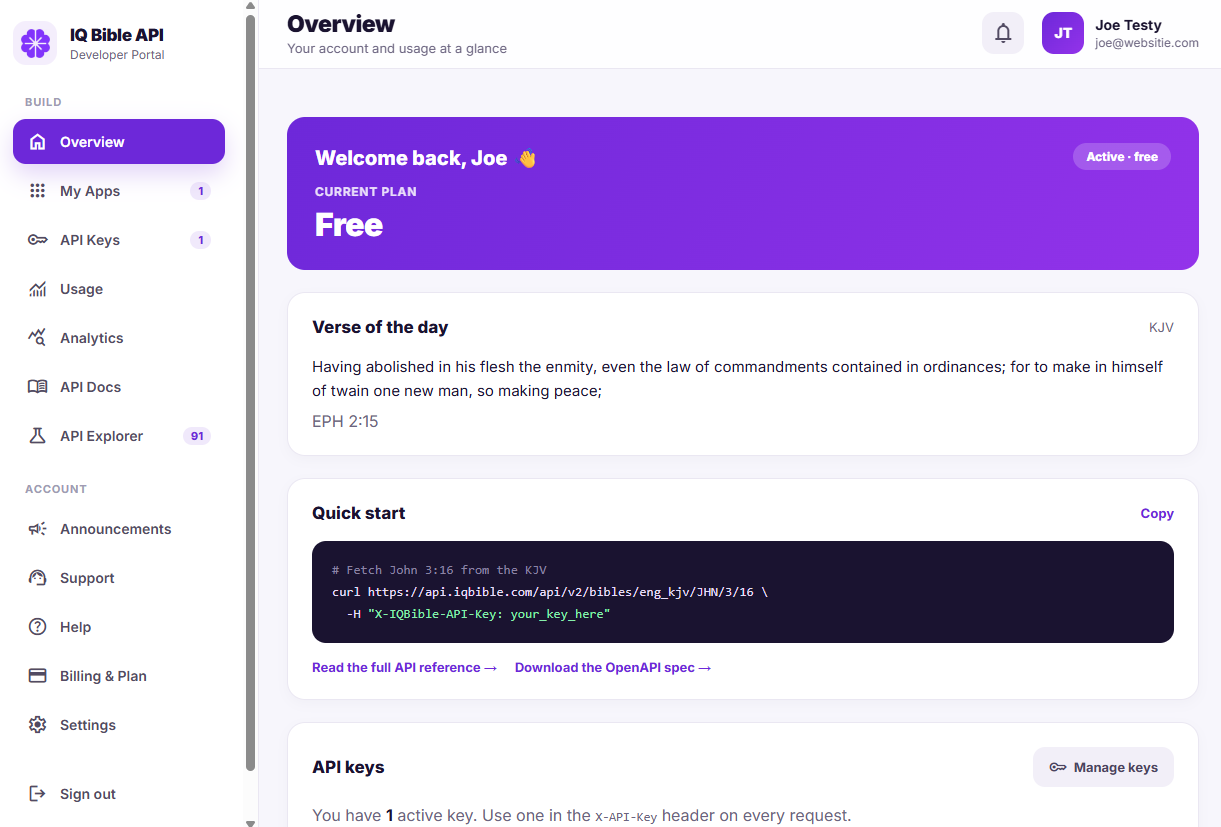
This post walks through the IQ Bible API developer portal at developer.iqbible.com — every panel, in order, so you know what to expect before you sign in. The portal is fully self-service: nothing below requires a sales call or an account manager.
Getting started
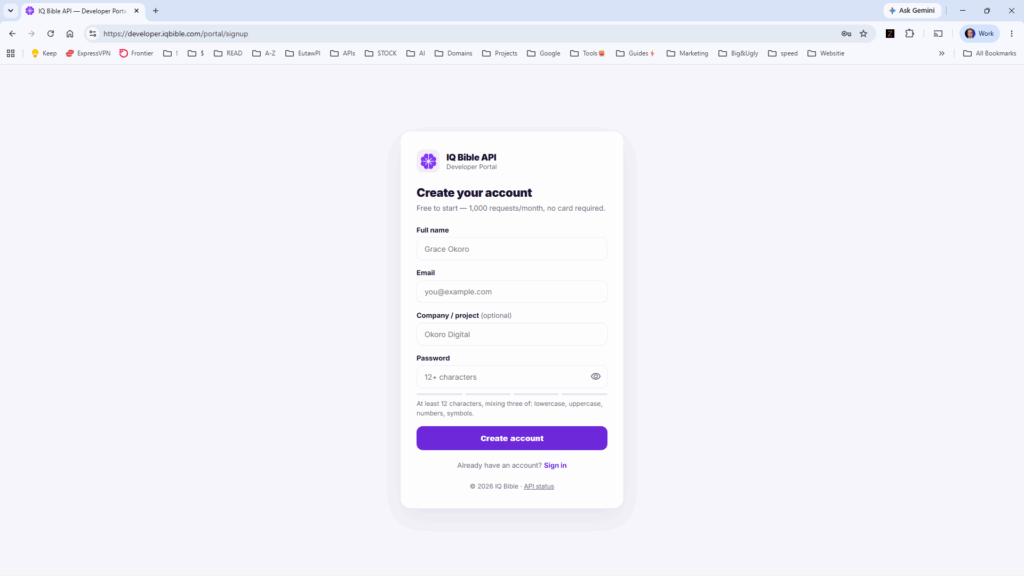
Creating an account takes a couple of minutes — no card required, no approval wait. Complete the sign-up form and you have access immediately. Returning users sign in from the same page.
Overview
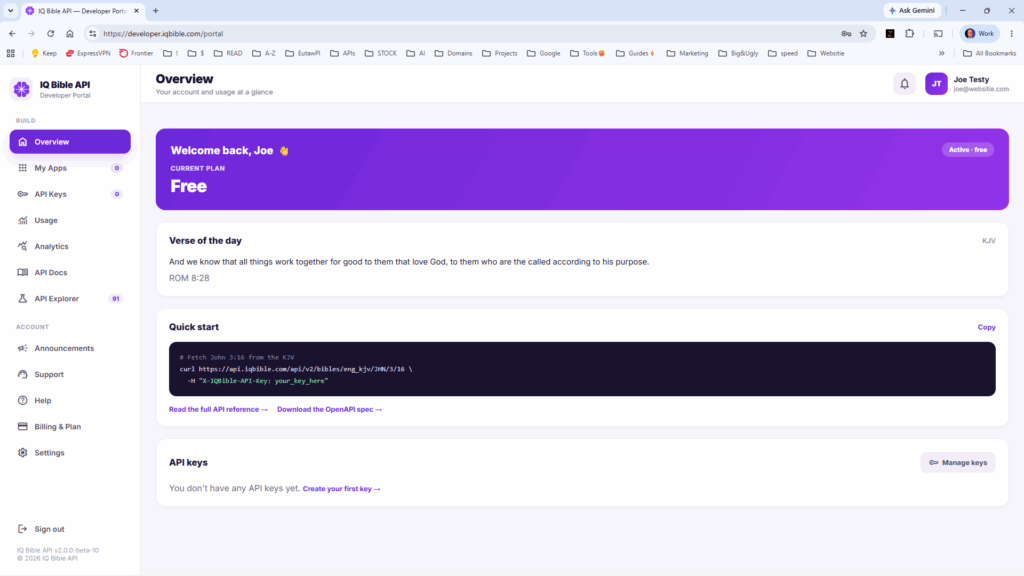
The Overview panel is what you see immediately after signing in: a summary of your current plan, requests used this month, and your most recently active keys and apps.
My Apps
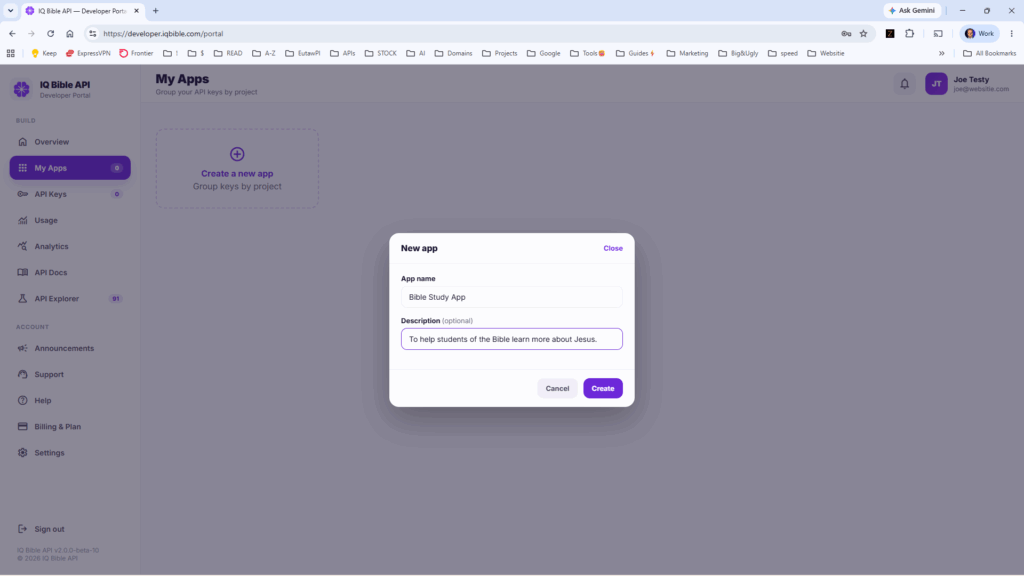
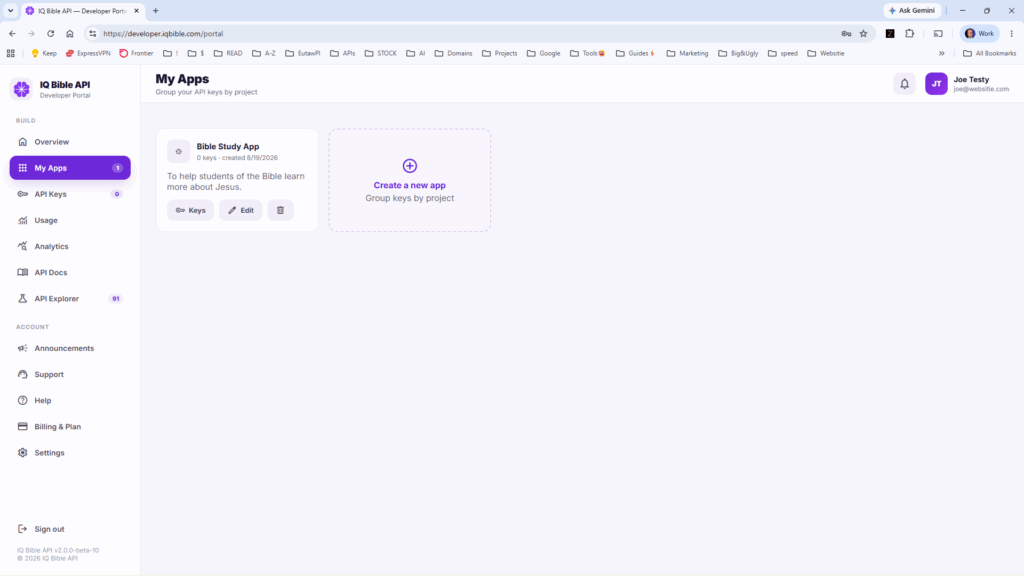
An app is a label used to organize your keys and usage data. If you’re running more than one project against the API — a reading app, a sermon tool, an internal script — assigning each its own app keeps their usage stats separate rather than combined into one total.
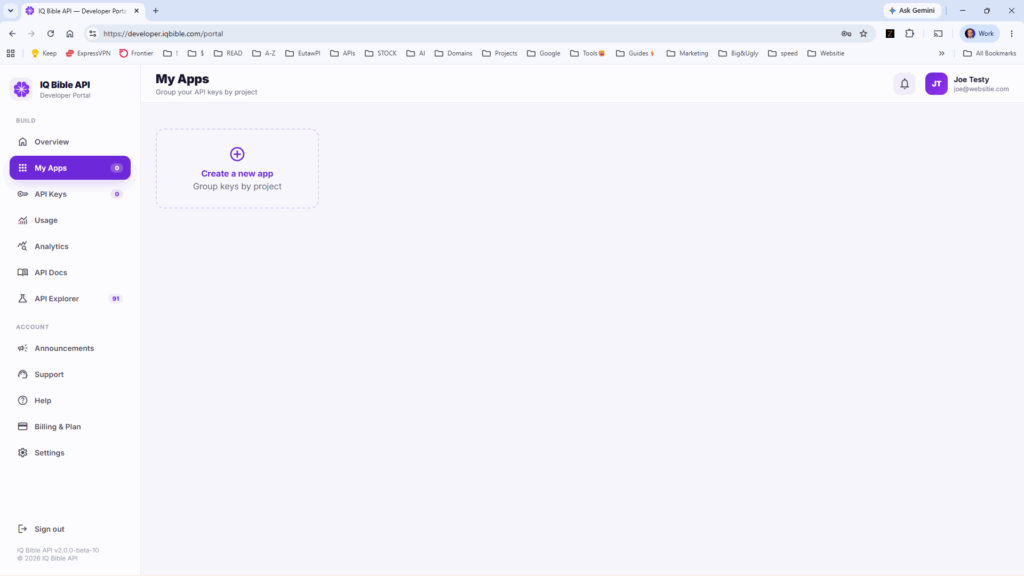
Creating an app takes a few seconds: click Create a new app and provide a name. Apps can be renamed or archived later without affecting anything already assigned to them.
API Keys
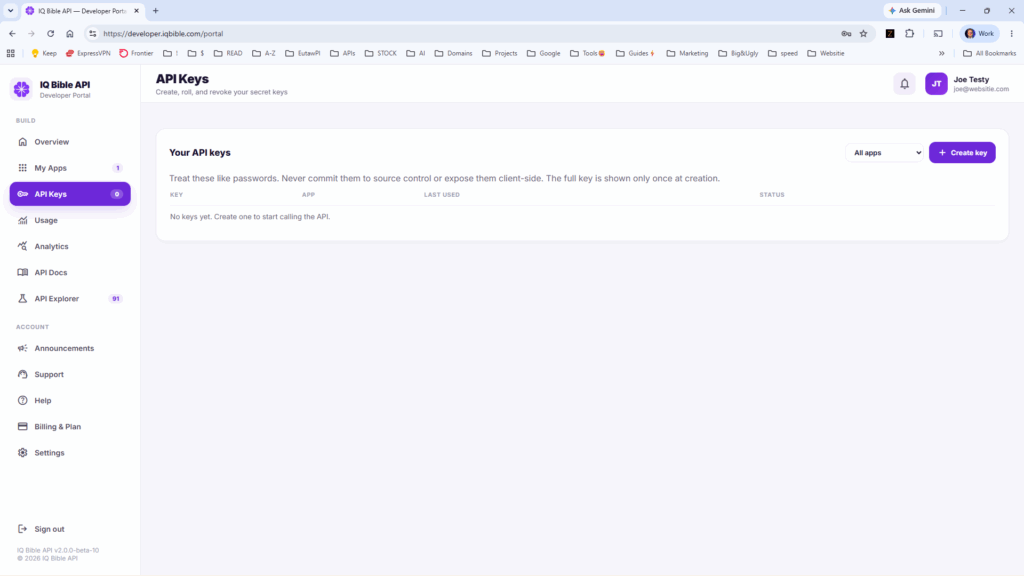
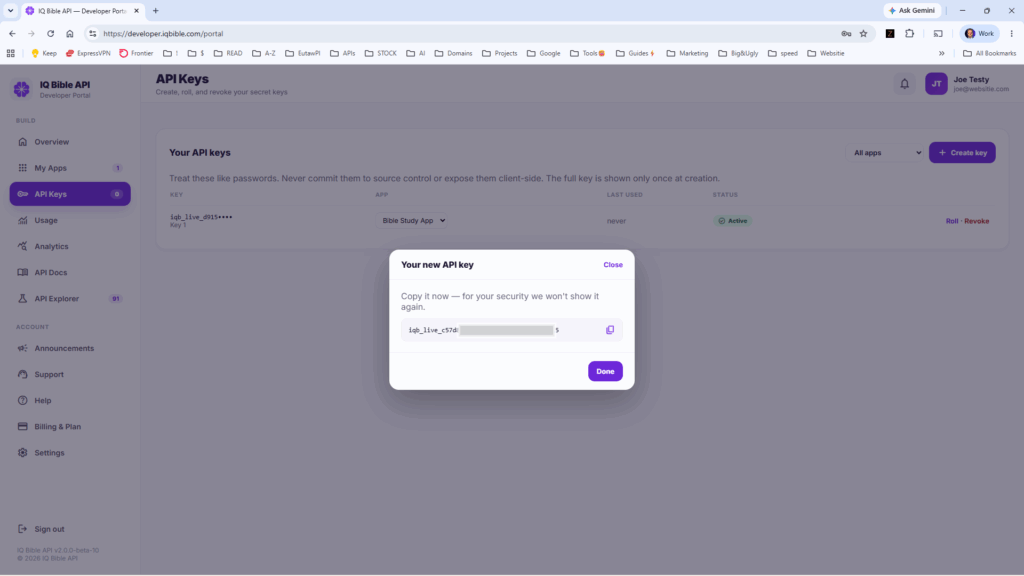
API keys are created from this panel. Click Create key, give it a descriptive name (for example, `prod-ios-app` rather than `key1`), and optionally assign it to an app.
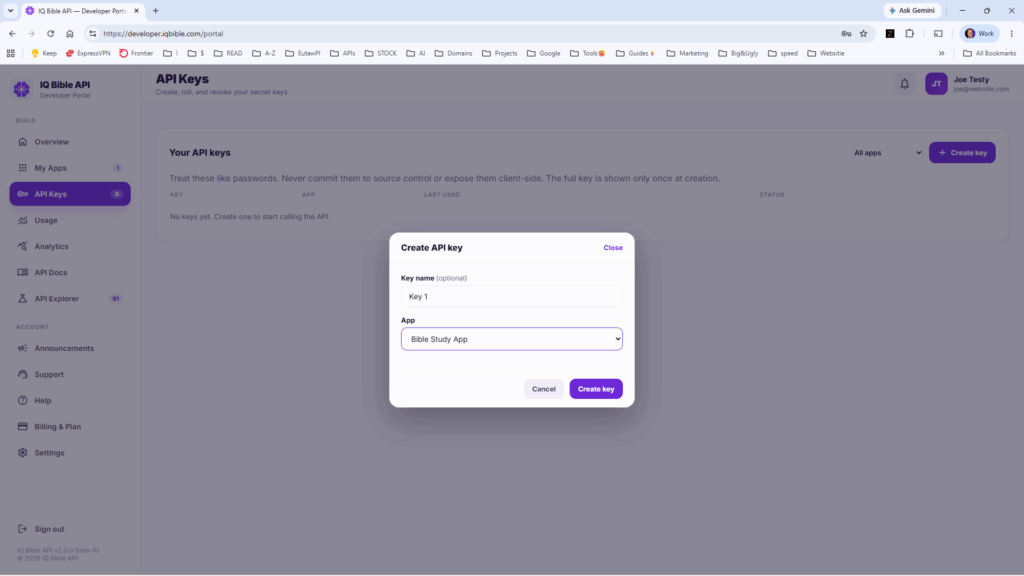
The key value is displayed once, at creation. Only a hash is stored afterward, so copy the key before closing the dialog.
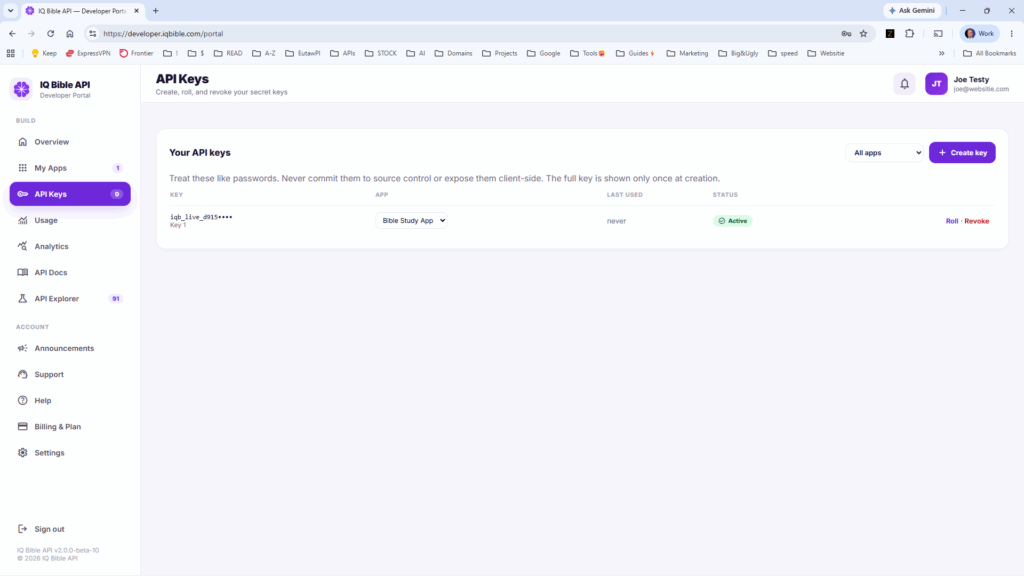
Multiple keys can be held at once — separate keys for development, staging, and production are recommended. Keys can be renamed, reassigned to a different app, or revoked at any time. Revocation is immediate.
Usage
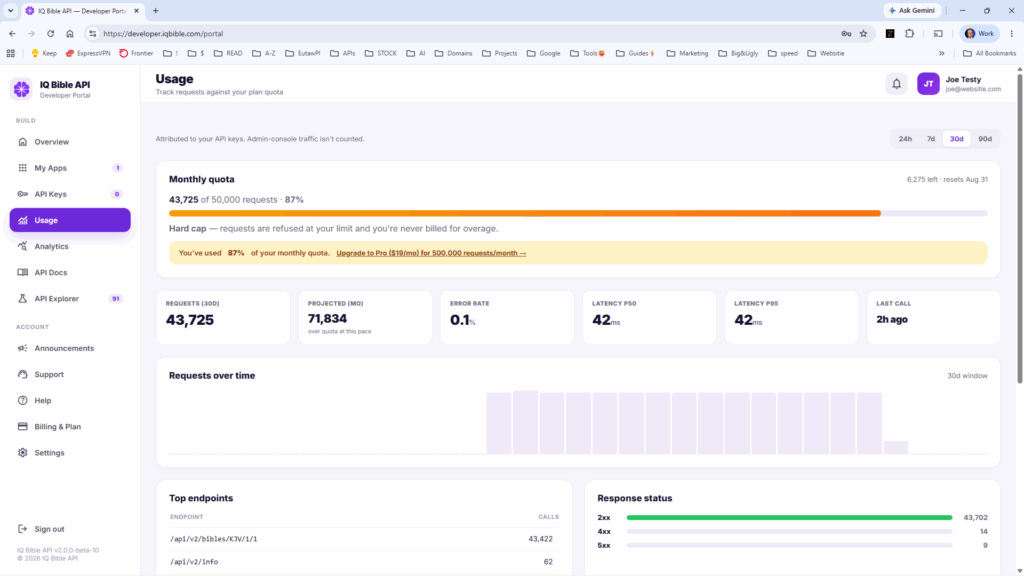
The Usage panel reports current-cycle metrics: monthly quota and consumption to date, requests over time, top endpoints, response status breakdown (2xx/4xx/5xx), usage by app, and current rate limit and throughput.
Analytics
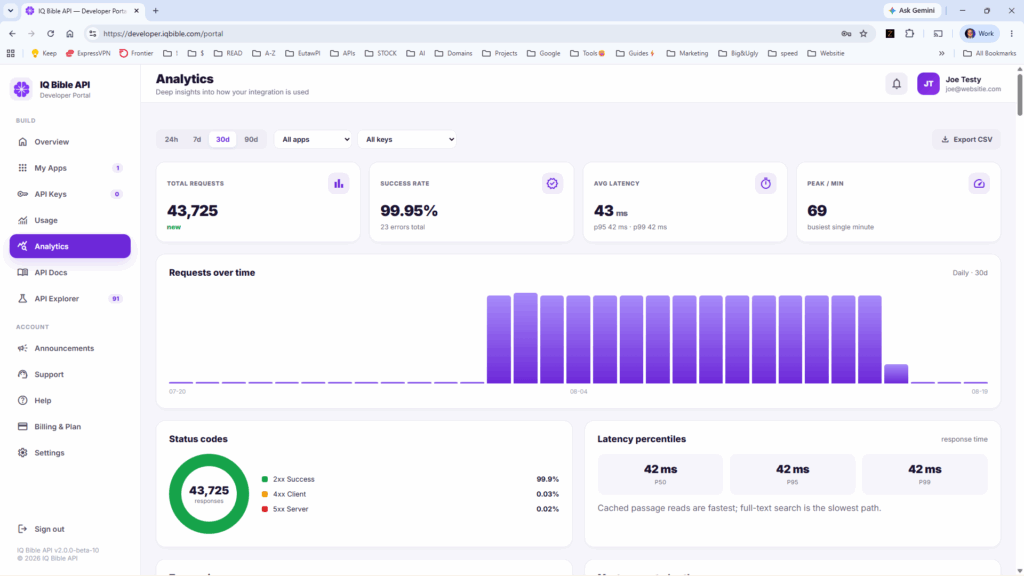
Analytics provides a more detailed view: requests over time at finer resolution, status codes, latency percentiles (p50/p95/p99), most-requested Bible versions and endpoints, traffic by hour, and a searchable log of recent errors. All metrics can be filtered by API key. This panel is worth reviewing before a production launch and when diagnosing a latency or error-rate issue.
API Docs
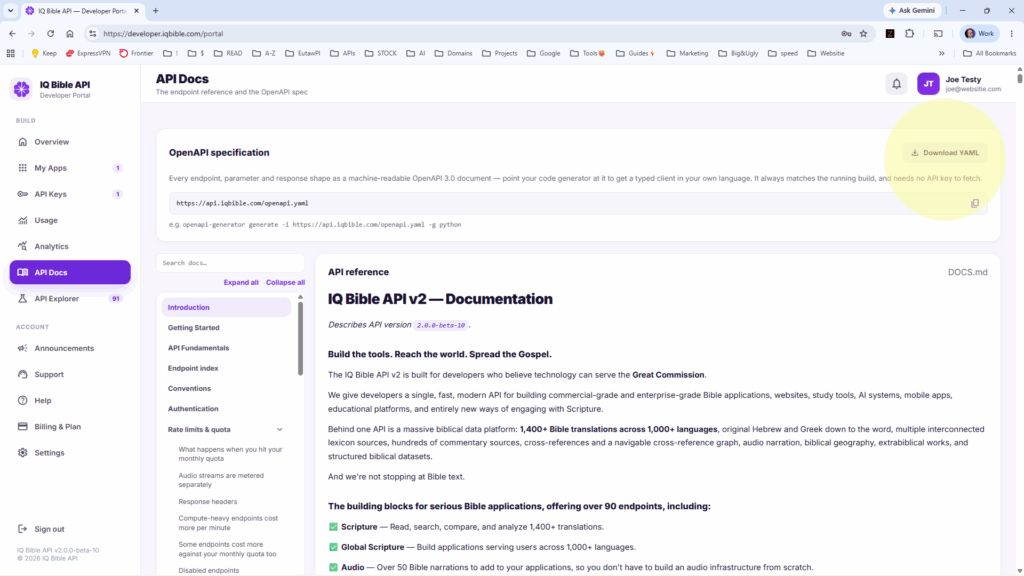
The API Docs panel holds the full written reference: searchable endpoint documentation and the OpenAPI specification, available as a direct YAML download for client generation or import into tools like Postman or Insomnia.
API Explorer
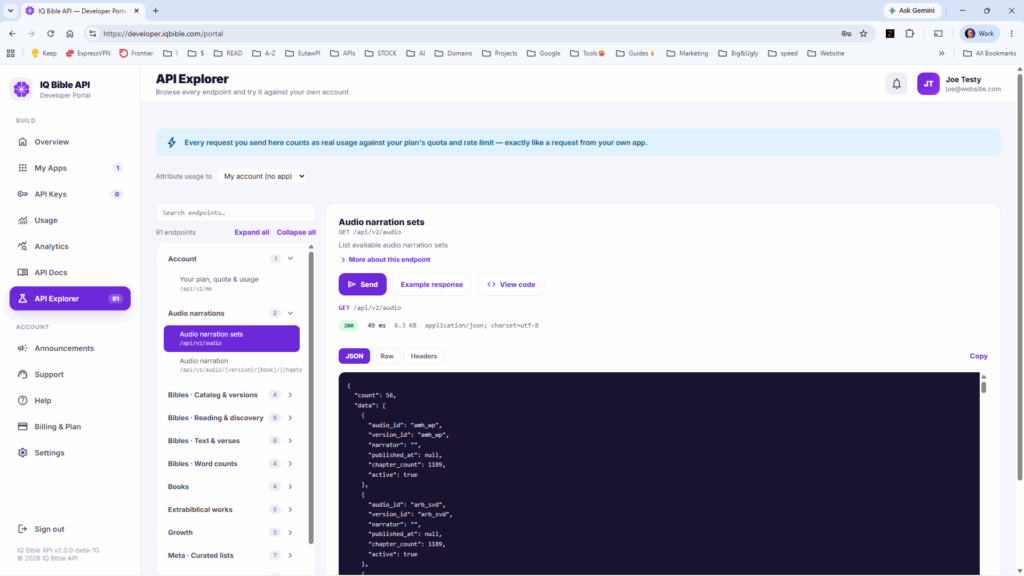
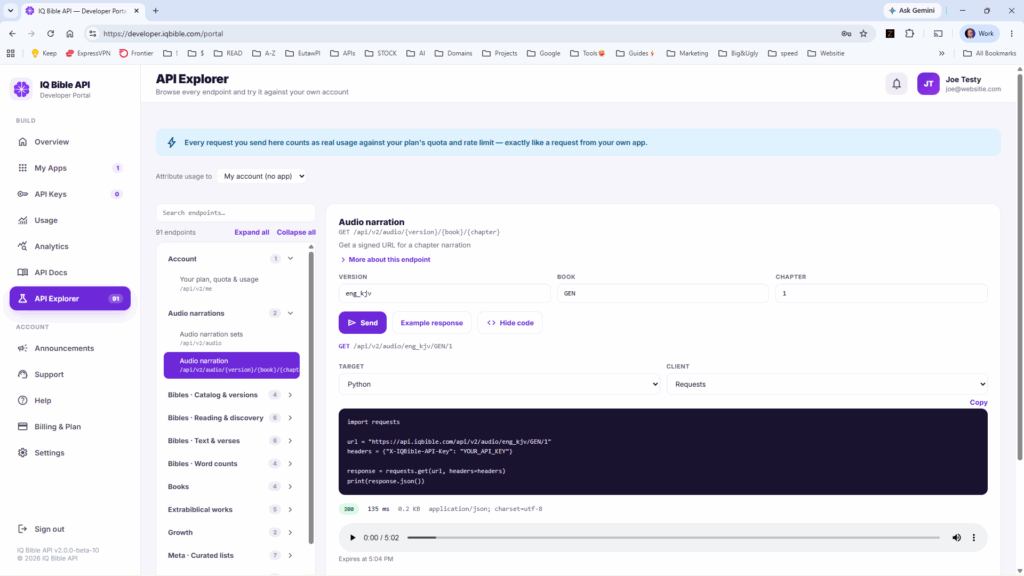
The API Explorer presents every endpoint in a browsable tree, grouped by category (Bibles, Audio, Lexicon, Commentary, and others), so the API can be explored without reading the full reference first. Select an endpoint, populate its parameters, and click Send, or Example response, to fire a real request against the live API. The request uses a short-lived key scoped to your account, so your actual API keys are never exposed in the browser.
Once a request returns the expected result, View code provides an equivalent snippet in one of 18 languages, including cURL, Python, Node.js, Go, Swift, and PHP.
Announcements
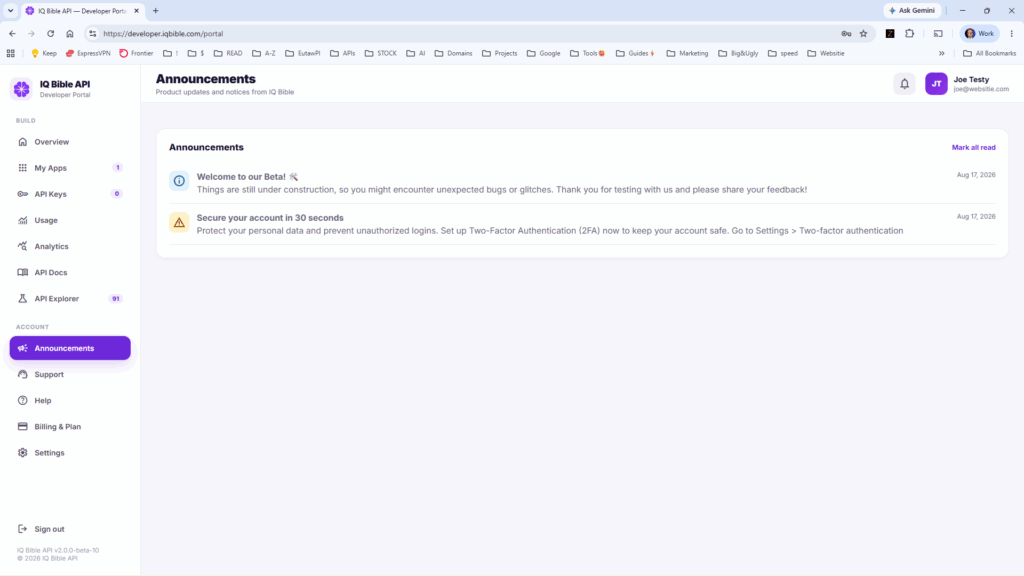
Product updates that could affect an integration — new endpoints, versioned breaking changes, maintenance windows — are posted here.
Support
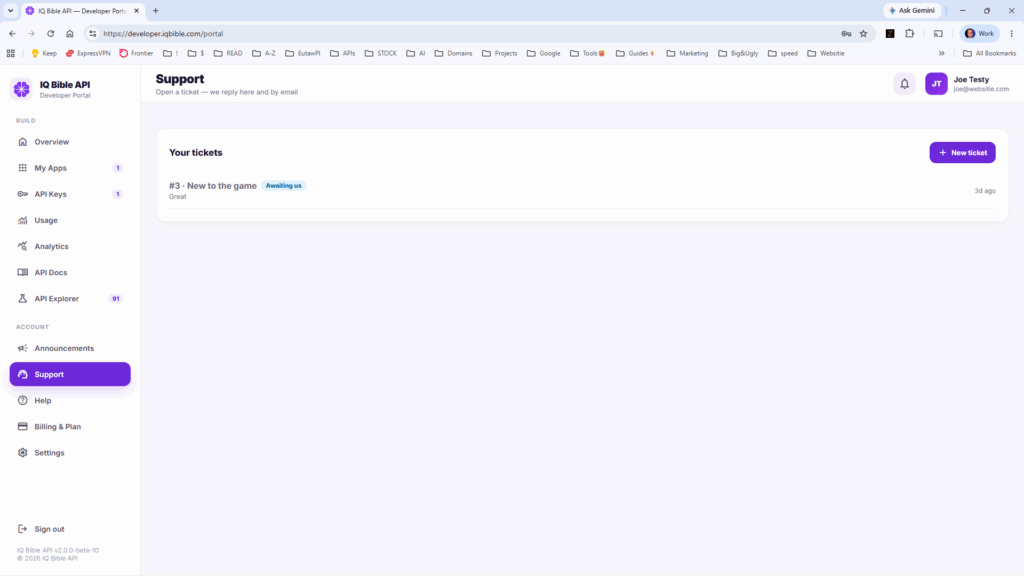
Support tickets are opened and tracked from within the portal. Each ticket is a persistent conversation thread, so follow-up correspondence stays attached to the original request rather than scattered across email.
Help
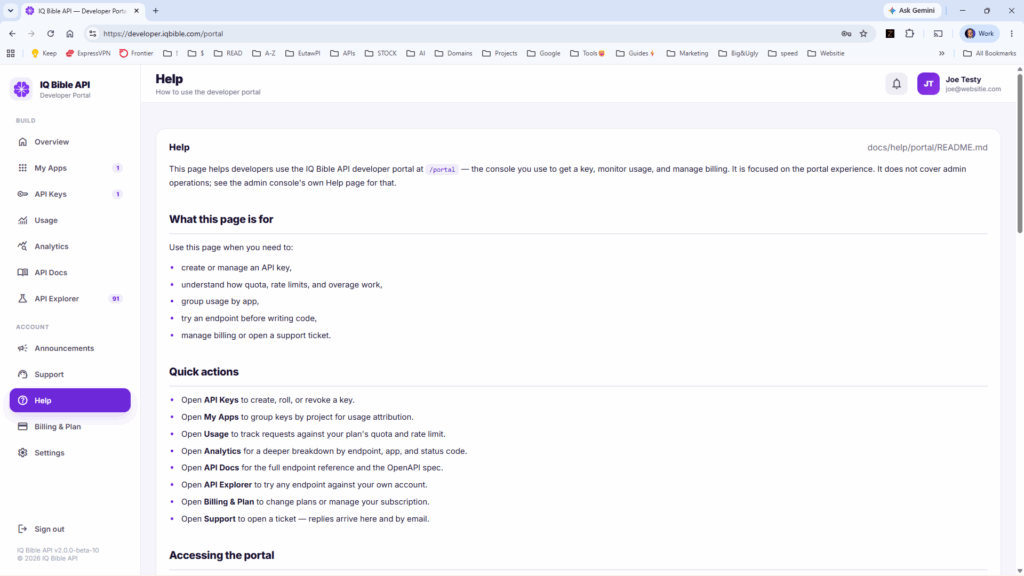
The Help panel offers shorter, task-focused answers as a lighter alternative to the full API reference.
Billing & Plan
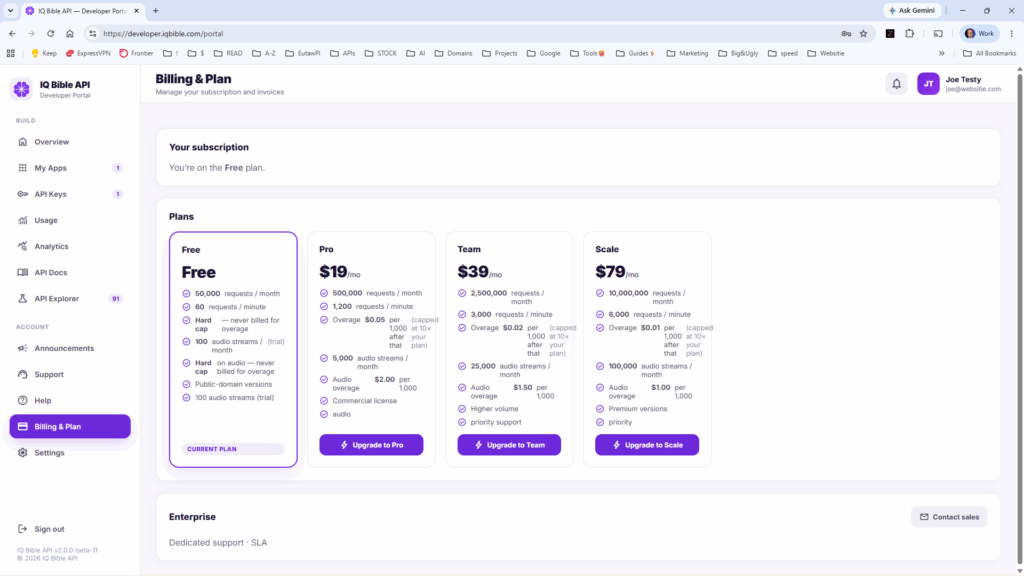
The Free plan requires no card and includes 50,000 requests per month. Pro starts at $19/month for 500,000 requests, with Team and Scale available for higher volume. All paid plans bill overage rather than cutting off traffic once the plan limit is reached.
Plan changes take effect immediately from this panel, with no support ticket required. Enterprise plans, for usage beyond Scale, are handled directly — contact support to discuss terms.
Settings
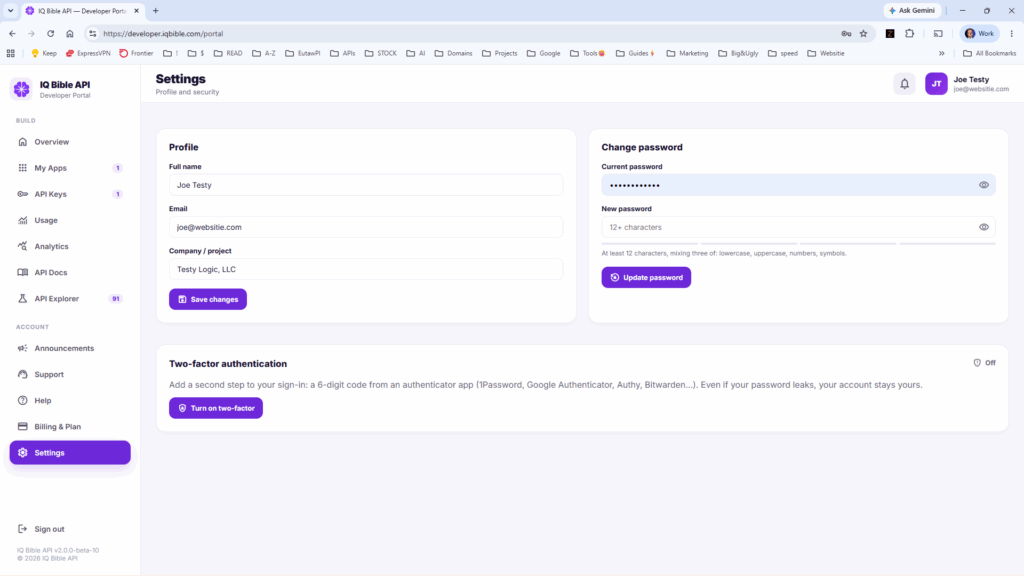
Account settings include profile information, password changes, and two-factor authentication (QR-code enrollment with a six-digit confirmation code). Enabling two-factor authentication is recommended for any account with billing or usage data attached.
Summary
Every panel described above is available immediately after sign-up, with no gated features behind a sales conversation. Questions or issues can be raised directly through the Support panel.
Get started at developer.iqbible.com
Leave a Reply